
Best Command Prompt Tricks|New 2020 (cmd)command prompt
Best Command Prompt Tricks

With an interface as attractive as Windows 10’s , it’s easy to forget that the OS comes with a command line interface as well. Well, you might have forgotten the Command Prompt, Microsoft hasn’t, as it brought some really handy improvements to Command Prompt with Windows 10. While it’s not as powerful as its Unix counterpart, there are definitely a lot of Command Prompt tricks that can make it a very useful tool to have. A lot of things that the Command Prompt (also known as CMD) can let you do, are not even available in the GUI of the Windows OS, so it’s definitely something you should be using. In this article, we will be sharing with you, 18 Command Prompt tricks that you should definitely know in 2020.

Before we get to our list, don’t forget to read our article on BEST GADGETS TO BUY IN 2020 if you are new to Windows 10 or want to learn about its new features.
1. Encrypt Files Using Command Prompt
Encryption is a way to prevent others from taking a peek at your data, and
it’s a really important part of ensuring (to some extent, at
least), that your files are only yours. With this simple Command
Prompt trick, you can easily encrypt files on your Windows PC.
- Simply launch the Command Prompt, and change your working directory to the folder where your files are. This can be done by using the “cd” command.
- Once you’re done, type “Cipher /E“, and hit Enter. This will encrypt all the files that were inside the folder.
2. Watch an ASCII Version of Star Wars: A New Hope
This one is a very cool trick, that can let you watch an ASCII text version of Star Wars: A New Hope, completely inside the command prompt window. The method is very simple, and it uses Telnet. Simply follow the steps below to watch Star Wars inside the cmd window.
- Launch Command Prompt, and type “telnet towel.blinkenlights.nl”, and hit Enter.
- The movie will start playing immediately.
- Note: First Enable the telnet function in Control Panel/Programs/ enable both telnet
3. Create a WiFi Hotspot
You can also use the Command Prompt to create a WiFi hotspot on your Windows PC, and share your internet connection with multiple devices, all without having to use any third-party apps whatsoever. To do this, just follow the steps below:

- Launch Command Prompt, and type “netsh wlan set hostednetwork mode=allow ssid=HotspotName key=Password“. Replace “HotspotName” with the name that you want for your WiFi hotspot, and replace “Password” with the password you want to set. Hit enter.
- Next, type “netsh wlan start hostednetwork” and hit Enter, and your WiFi hotspot will be broadcast, and other devices will be able to connect to it.
Note: If you want to stop broadcasting your WiFi hotspot, simply use the command “netsh wlan stop hostednetwork”.
4. Generate Battery Health Report
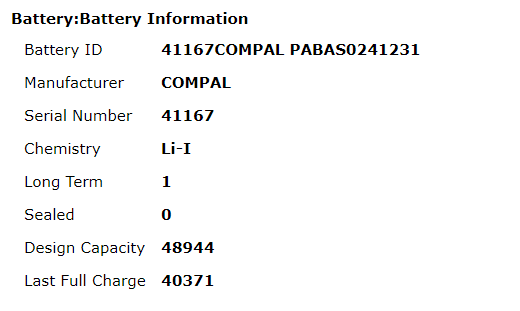
Windows 10 lets you track vital stats related to the battery’s health by maintaining data related to the battery. This includes stats like factory specifications, full battery capacity, and the current capacity and these are updated with each session. You can generate a report about these stats by using a CMD command, which can be executed as follows:
- Launch Command Prompt as an Administrator or change directory using cd C:\Windows\System32
- Enter command powercfg/energy
- The system will take 60 seconds to analyze and then generate a report in form of an HTML documents
To access the report, you can find the file stored as C:\Windows\system32\energy-report.html
Ads go here


Comments